Rust
Introduction
In this guide, we'll show you a few things you may need for your Rust Gameserver.
Connecting to your server
To connect to your server for the first time, open your server control panel and copy the server IP address from the console section.
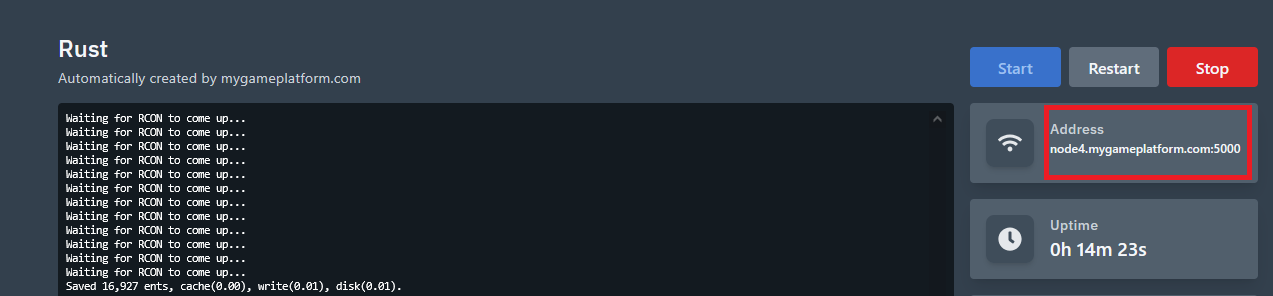
Then, open Rust and press the key F1 to open the console. Use the “connect” command followed by your server IP to connect to your server.
Once connected, you can check if you got the admin role by typing something in the in-game chat. If your nickname is green, then you set your admin roles correctly.
RCON password
This is the first and most important thing!
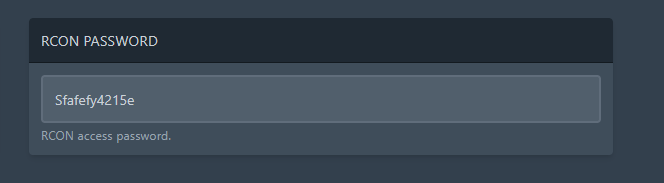
It is a password for your Rust server console, which will not be secure until you change it. By default, it is set to " CHANGEME ", so it is crucial to replace it with a new one.
Otherwise, anyone could make unauthorized changes to your server!
Administration
You probably want to become an admin on your Rust server to access all admin commands, such as ban, kick, mute, noclip, or god mode. This will also allow you to give yourself any items in the game.
Admin roles
Making yourself an admin
Get your STEAM64 ID.
Next, navigate to your server console and enter the following command. Ensure your server is running.
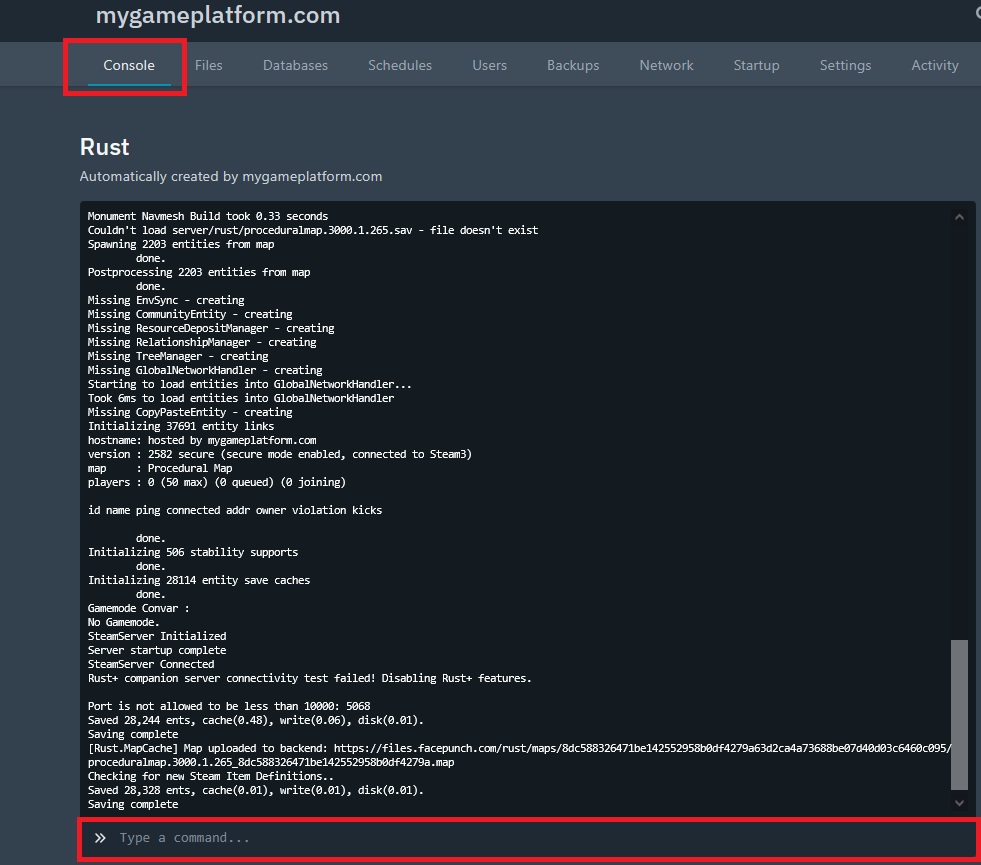
This command gives the player the admin role on your Rust server.
This command gives the player the moderator role on your Rust server.