Minecraft
Introduction
Server Version (Bedrock Edition)
- What to do?
Go to the website and view the current version
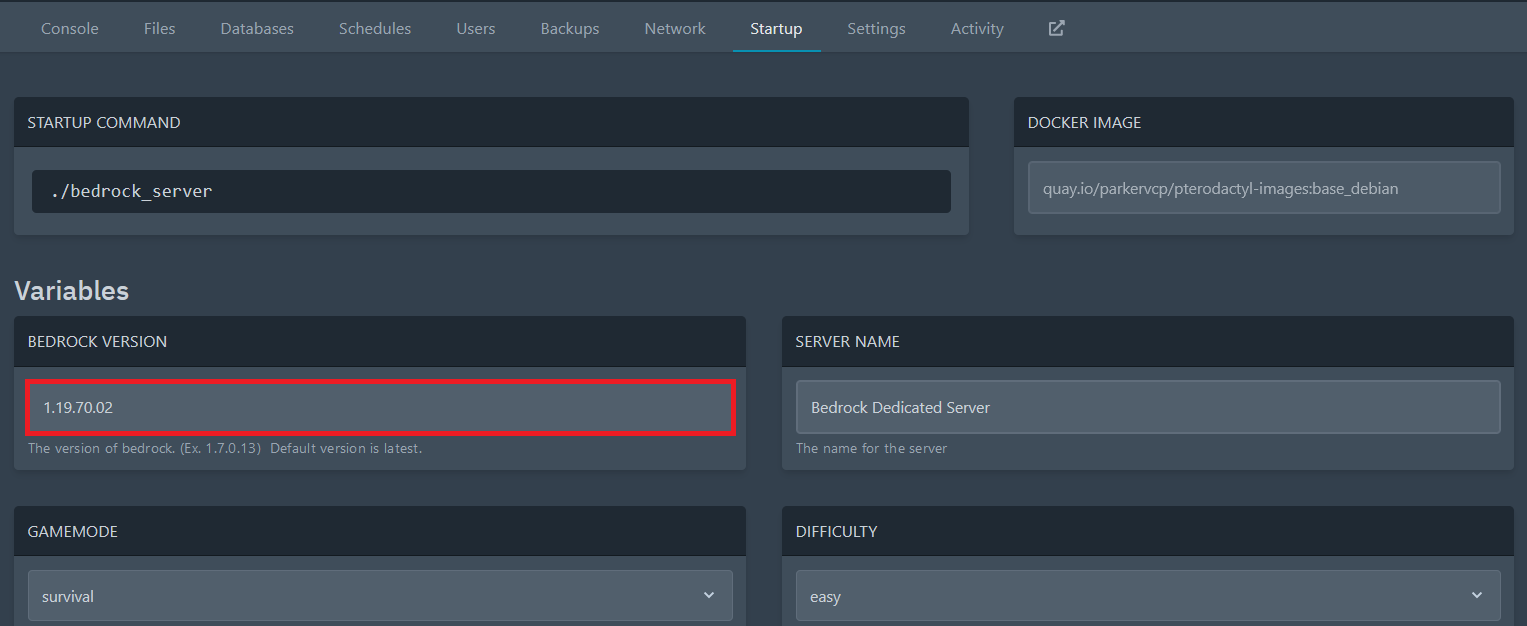
Go to your server panel and enter the version in the startup
Start the Server
Go to the Bedrock server download page and check the current version.
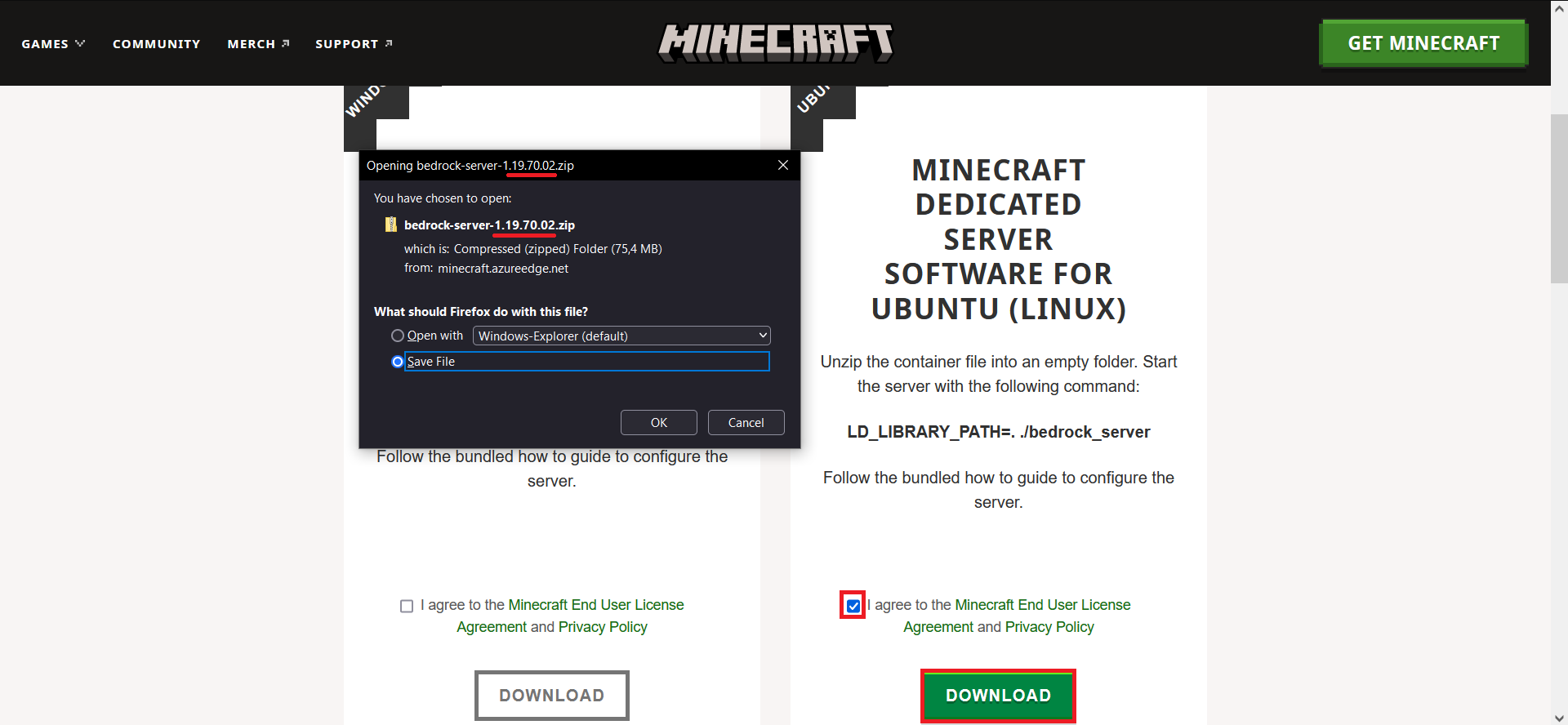
Enter the version in your startup.
Ready to go 👍
Reinstall and Backup
- What to do?
Create a Backup of your Server
Download your Backup
Reinstall the server (also possible via the panel, without deleting) -> see Settings
Now upload the files and folders back to your Server (Attention! Not the server.jar!) -> An FTP-Client is helpful for this.
Start the Server
Create a Backup
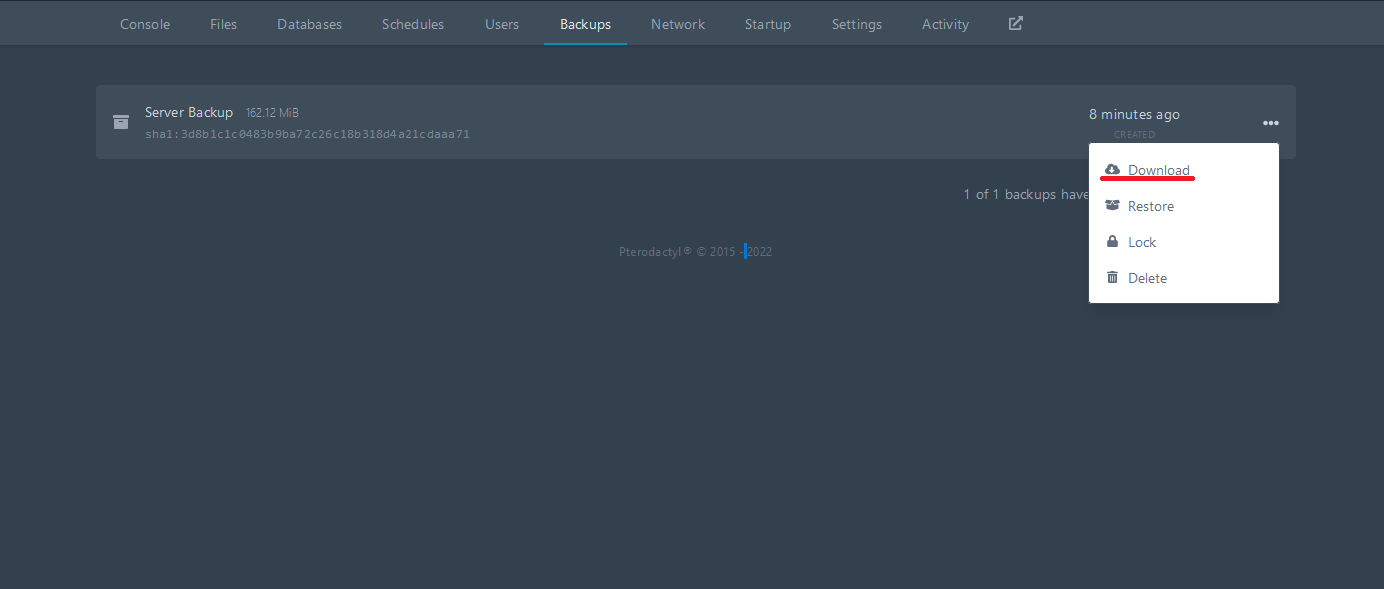
Unpack the Backup
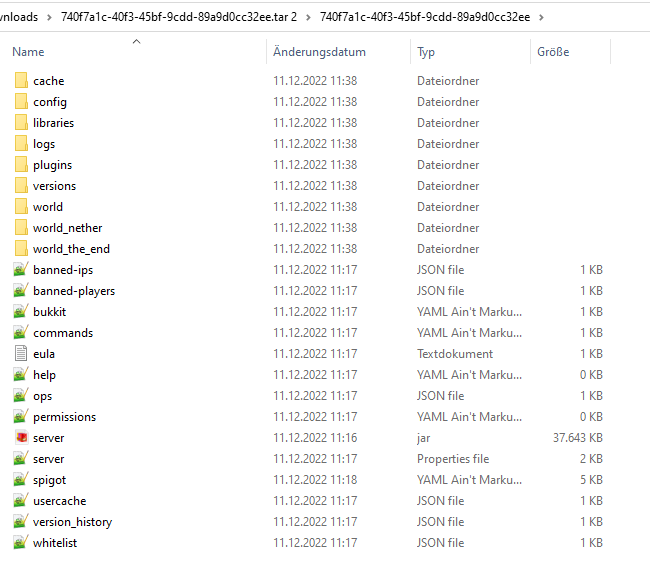
Connect your FTP-Client to your Minecraft Server, select all necessary Files (not the server.jar!) and upload them
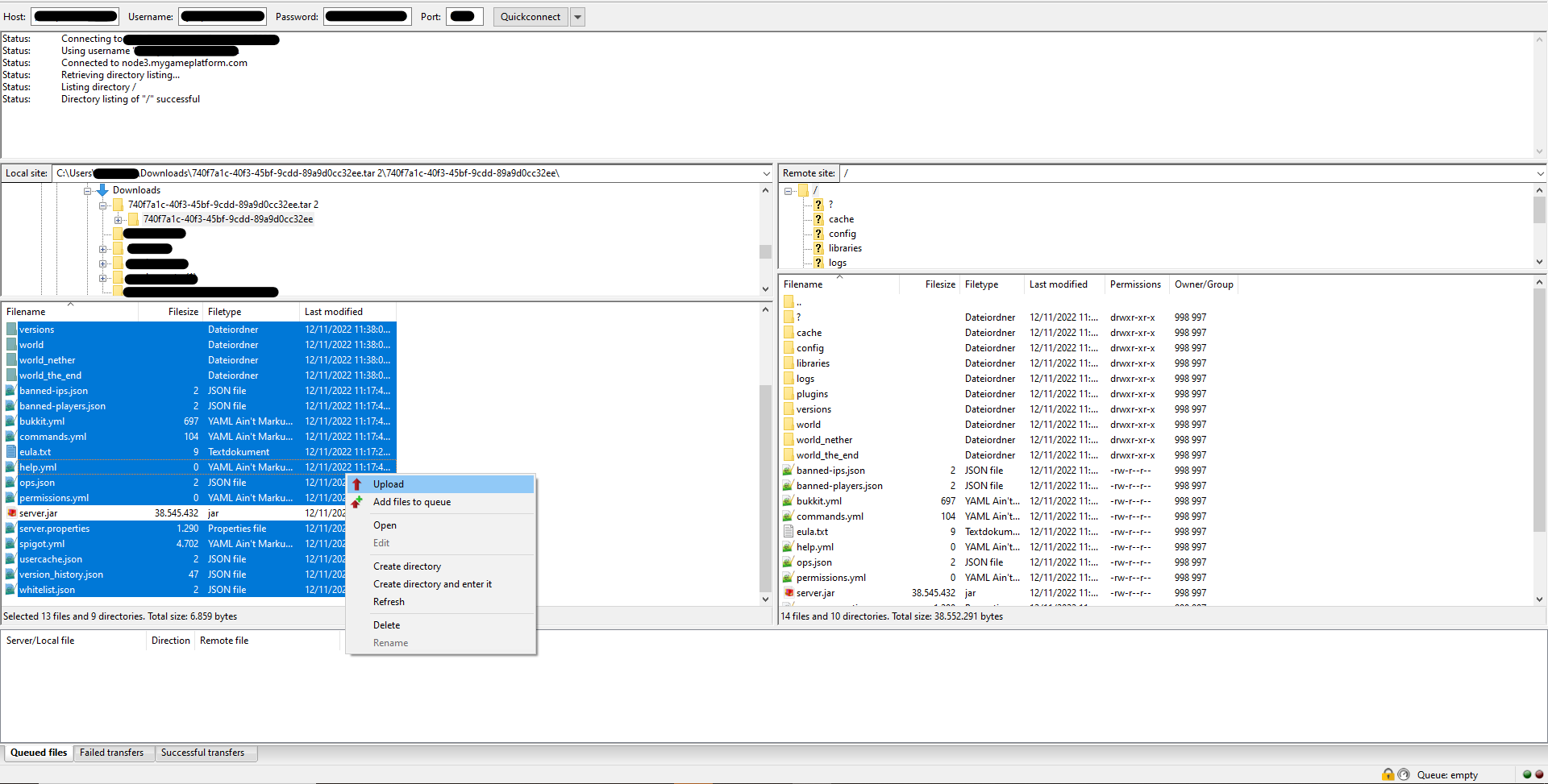
Overwrite all Files
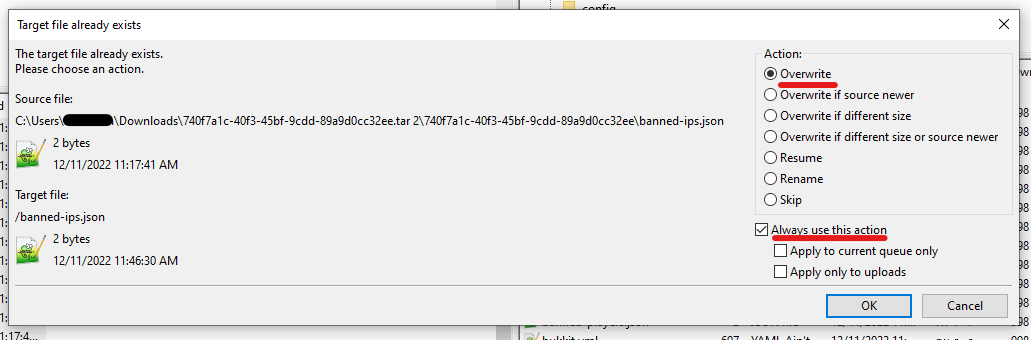
Ready to go 👍
Upload and Install Custom Modpacks (Java Edition)
Select a Modpack
Visit CurseForge to browse and choose your desired modpack.
Check the Required Forge Version
Check which Forge version is required for the selected modpack. This information is usually available on the modpack's page.
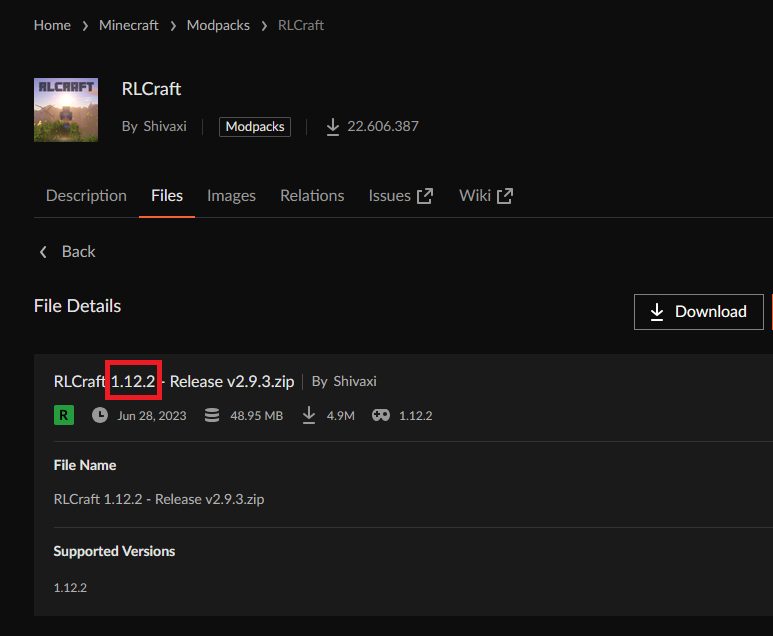
Visit the Forge Website
Go to the official Forge website: https://files.minecraftforge.net.
Choose the Compatible Forge Version
Select the Forge version that is compatible with your modpack to ensure everything works smoothly.
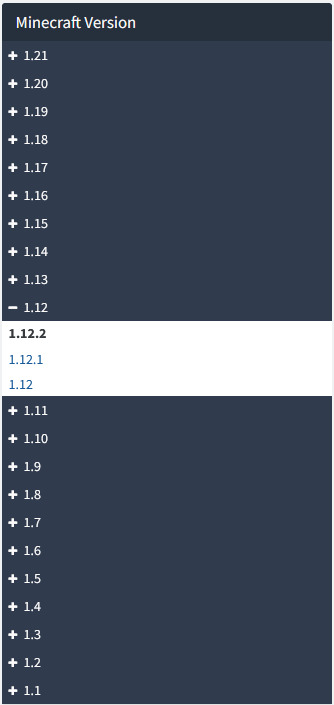
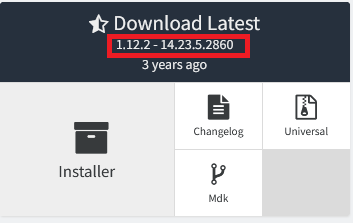
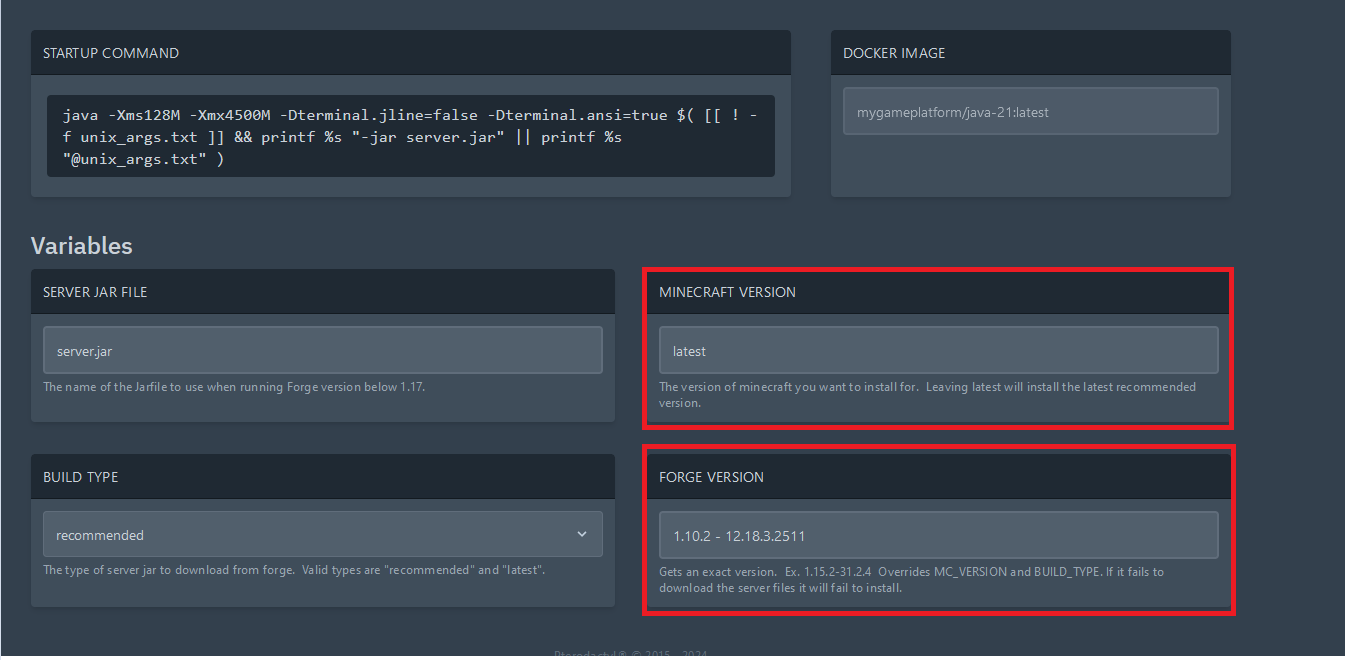
Enter the Forge Version in StartUp
Enter the selected Forge version in your Minecraft server's StartUp configuration.
Download and Install the Modpack
Create a
modsfolder. Example:/home/container/modsDownload the modpack and place the files into your server's
modsfolder.Go to Settings and click on Reinstall Server
Connecting to the Server
Launch Minecraft with the Forge profile.
Go to Multiplayer and add your server.
Connect to your server.
Tips
Compatibility: Ensure all mods are compatible with each other and with the Minecraft version being used.
Backups: Regularly create backups of your server to avoid data loss.
Support: If you encounter problems, feel free to join our Discord for help.