Server-Panel 🛠
Previous Step
Manage your Gameserver via Server-Panel
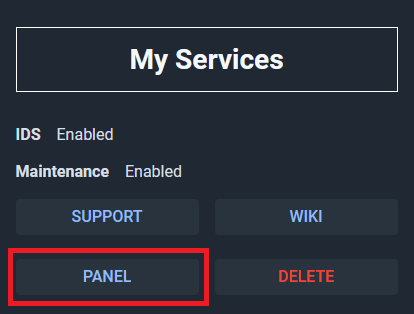
Open the Server-Panel
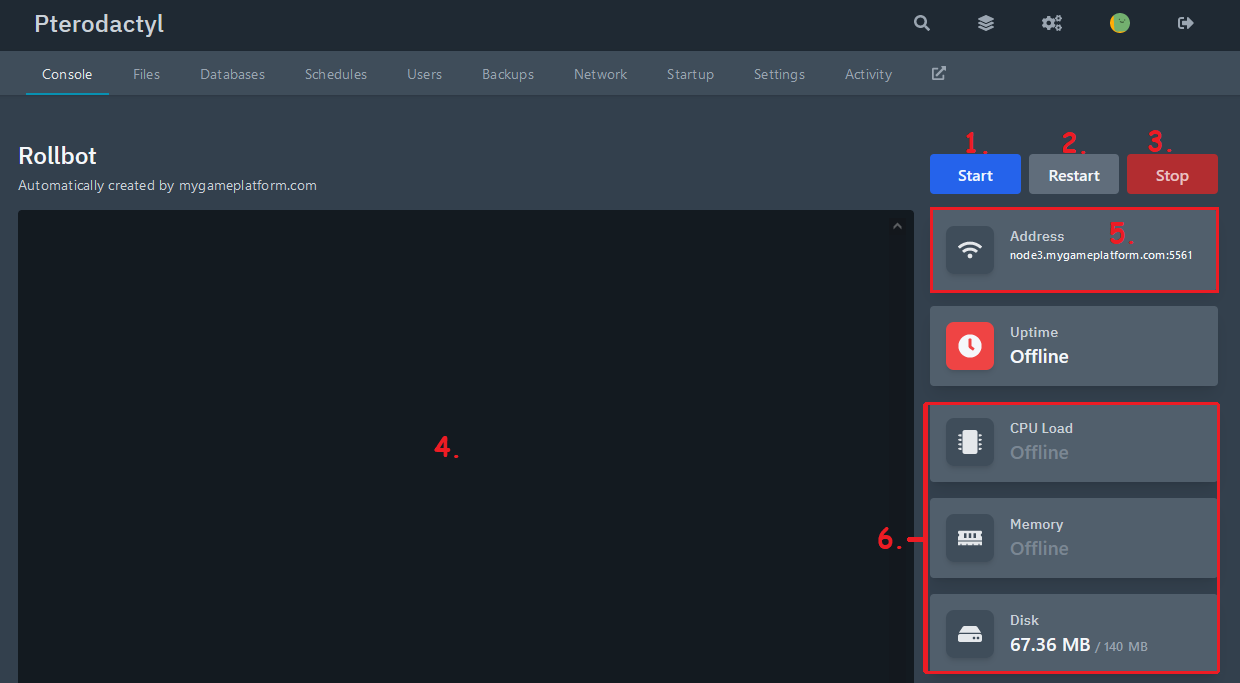
Start, Stop or Restart your Server
Start
Stop
Restart
Console
Address
Performance Indicator
Manage your Files
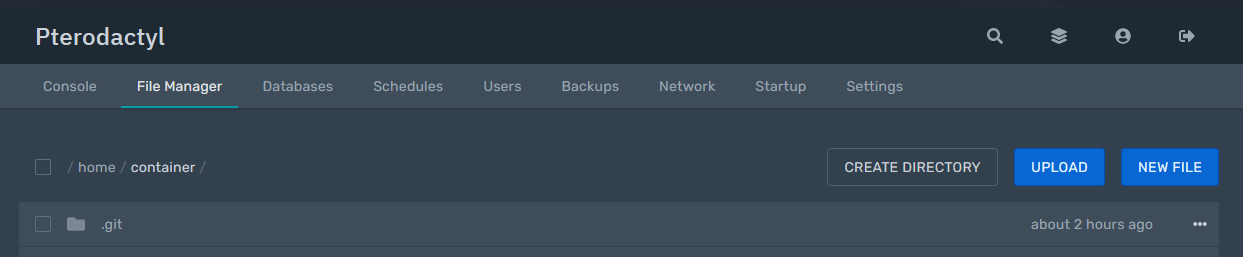
If you want to upload files or folders larger than about 100 MB, you need an FTP-Client.
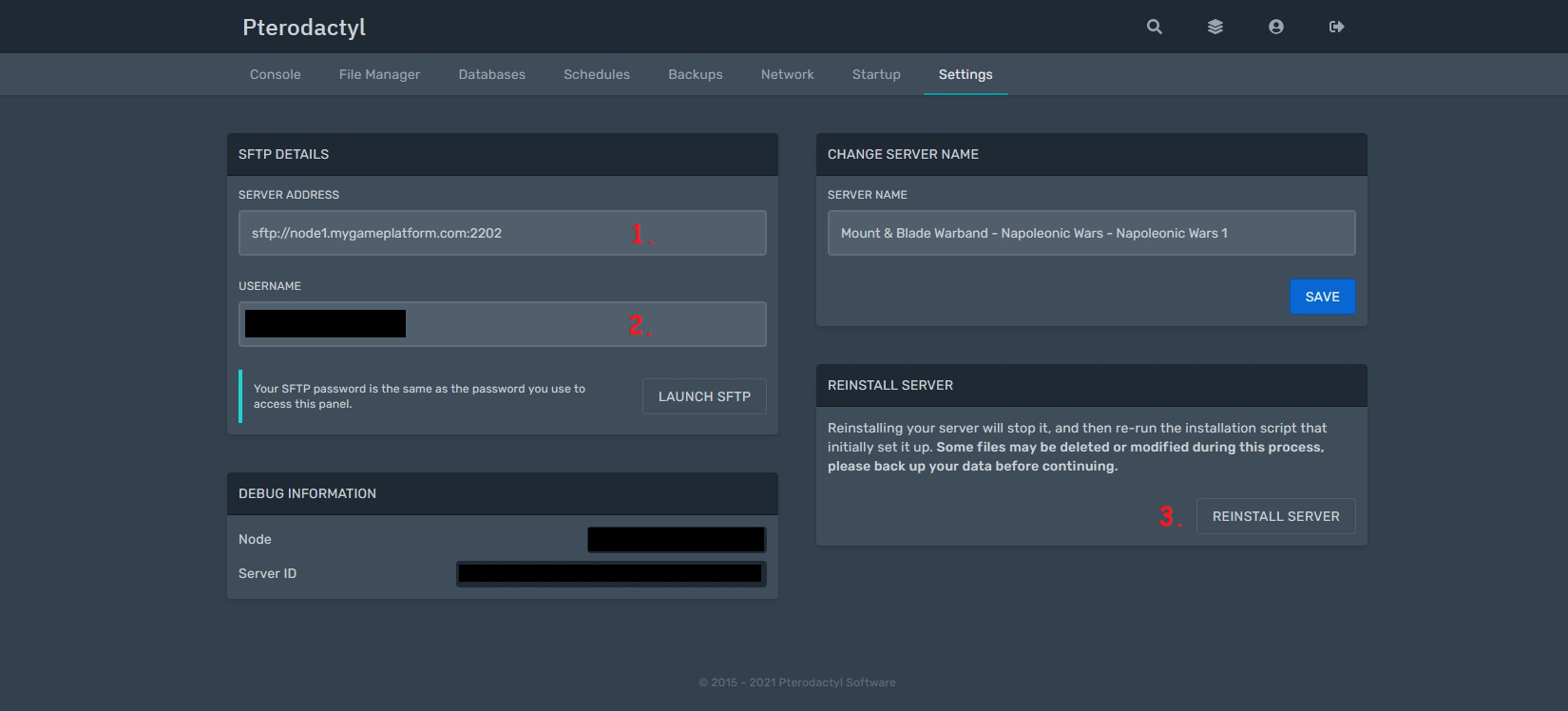
In addition, you can use an FTP client with Settings from here: Settings
Schedule your Server
In this example we create a 12 hour restart job.
Give your schedule a name
Set the interval at which the schedule repeats
Options
Create the schedule
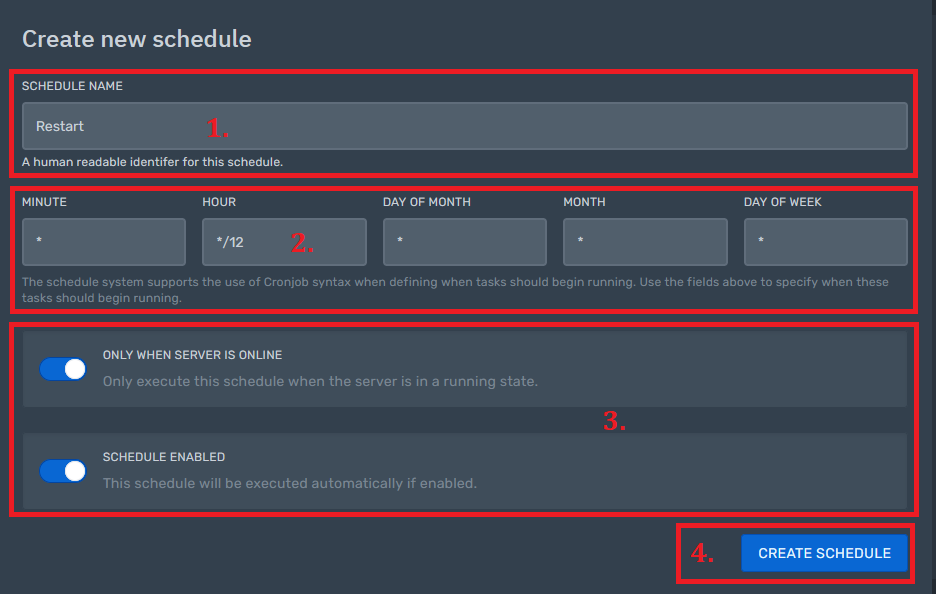
- Time
You can specify in which period and at what time the schedule repeats itself.
For example, if you enter the field: Hour
*/12, the schedule will be triggered every 12 hours.But if you enter
12in the field: Hours, the schedule will always be triggered at 12 AM.If you need help entering the time, you can use crontab guru.
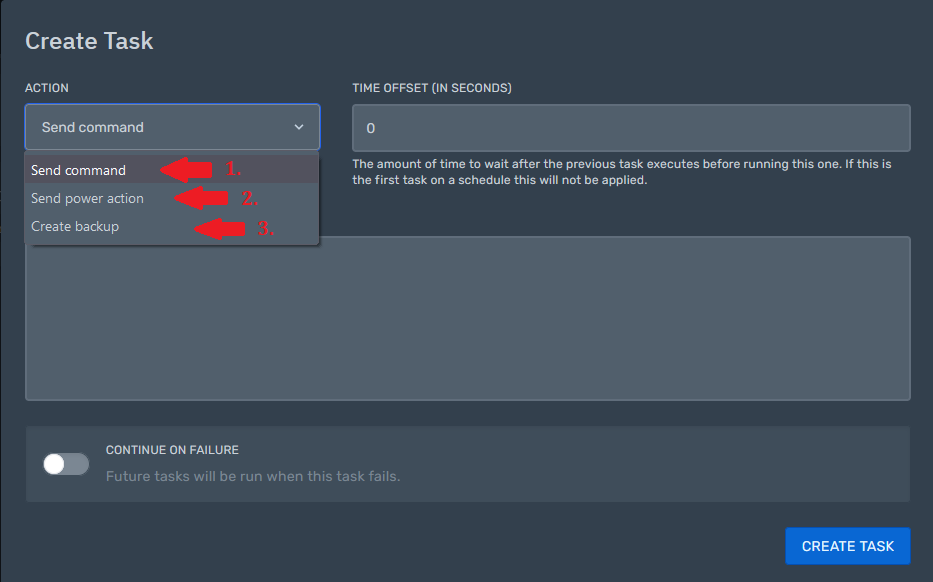
Create a new task

The schedule writes a command to the console.
The schedule presses one of the buttons: Start, Restart or Stop (or terminates the server).
The schedule creates a backup.
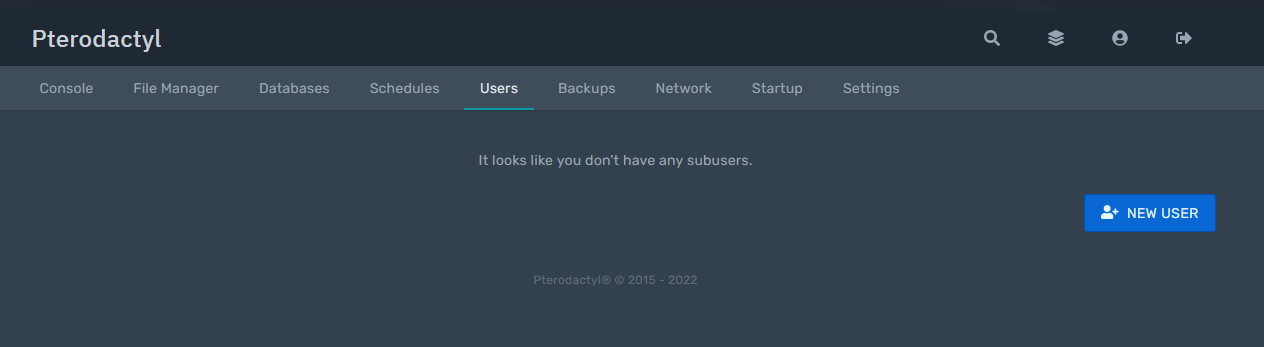
Add Friends to your Server
Add friends to control/manage the server for you
You can find shared servers in My-Panel (?)
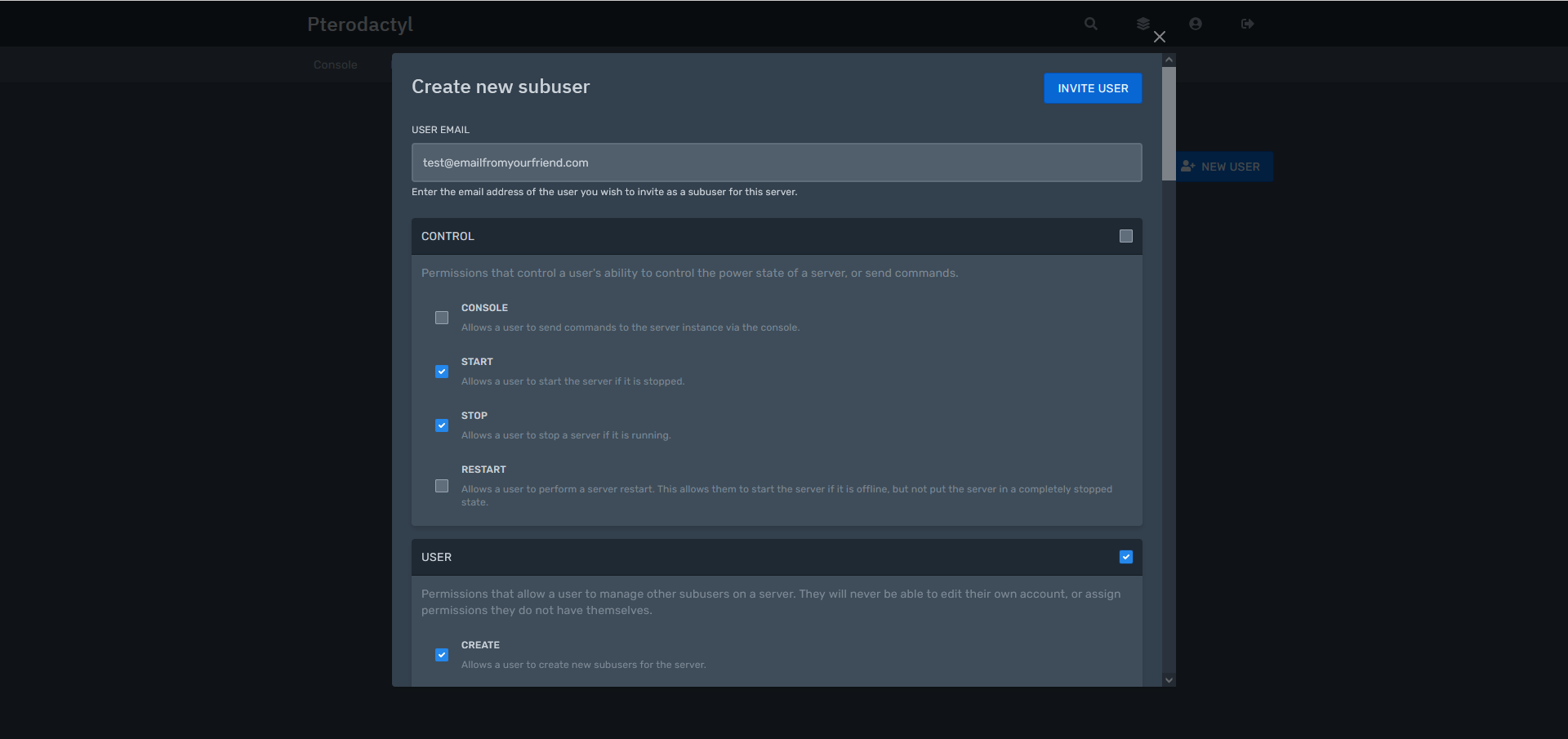
Enter the (registered) email of the user above and put a check mark at the things the user is allowed to do
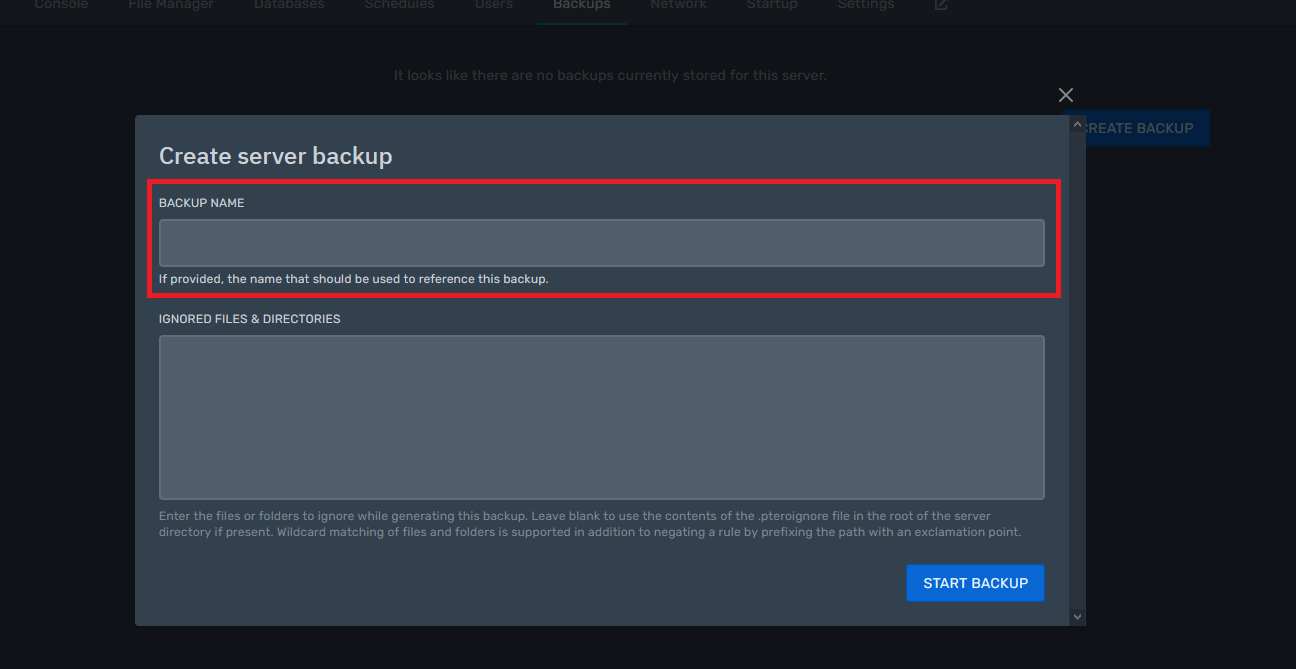
Backups
Create a backup of the server files

Startup
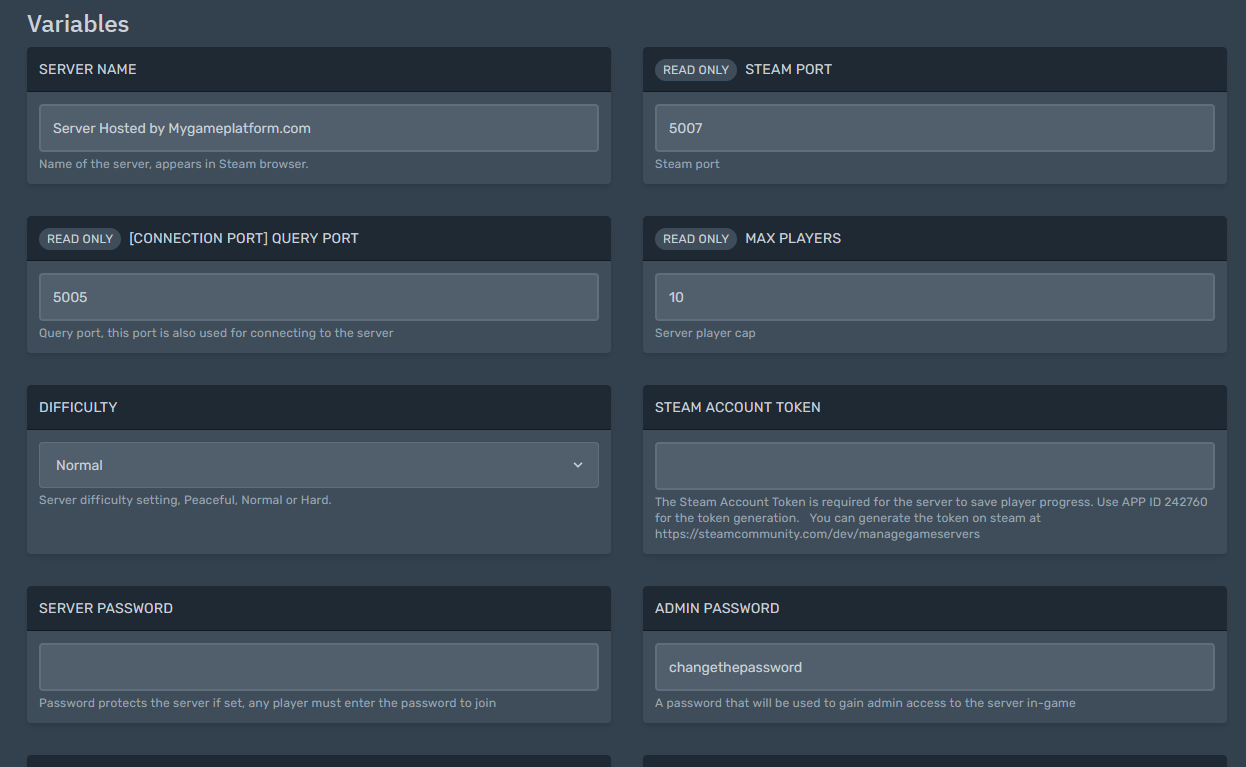
In Startup, you can configure many different settings on your server.
Examples:
change the name of the server
set a password
change the admin password
and more ...
But be careful! Since the startup is different for each server and is managed manually, mostly only the settings are available in the startup that are needed to get the server running.
All other settings you have to make yourself in the files of your server.
Settings
Address for the FTP-Client (example: Filezilla Client, WinSCP Client etc.)
Your username for the FTP
Reinstall your server (data will be lost!)