SFTP with an SSH Key
New to SFTP? Read FTP-Client first — it shows how to connect with a password.
Step 1 — Create an SSH key
You do this once on your PC. Open a terminal (Windows: PowerShell, macOS and Linux: Terminal) and run:
Press Enter to keep the suggested location. You can set a passphrase; a script that runs on its own usually needs a key without one.
This creates two files in the folder .ssh in your user folder:
File | What it is |
|---|---|
| The public key. You add it to the panel in the next step. |
| The private key. It stays on your PC. Never share it — it works like a password. |
Step 2 — Add the public key to the panel
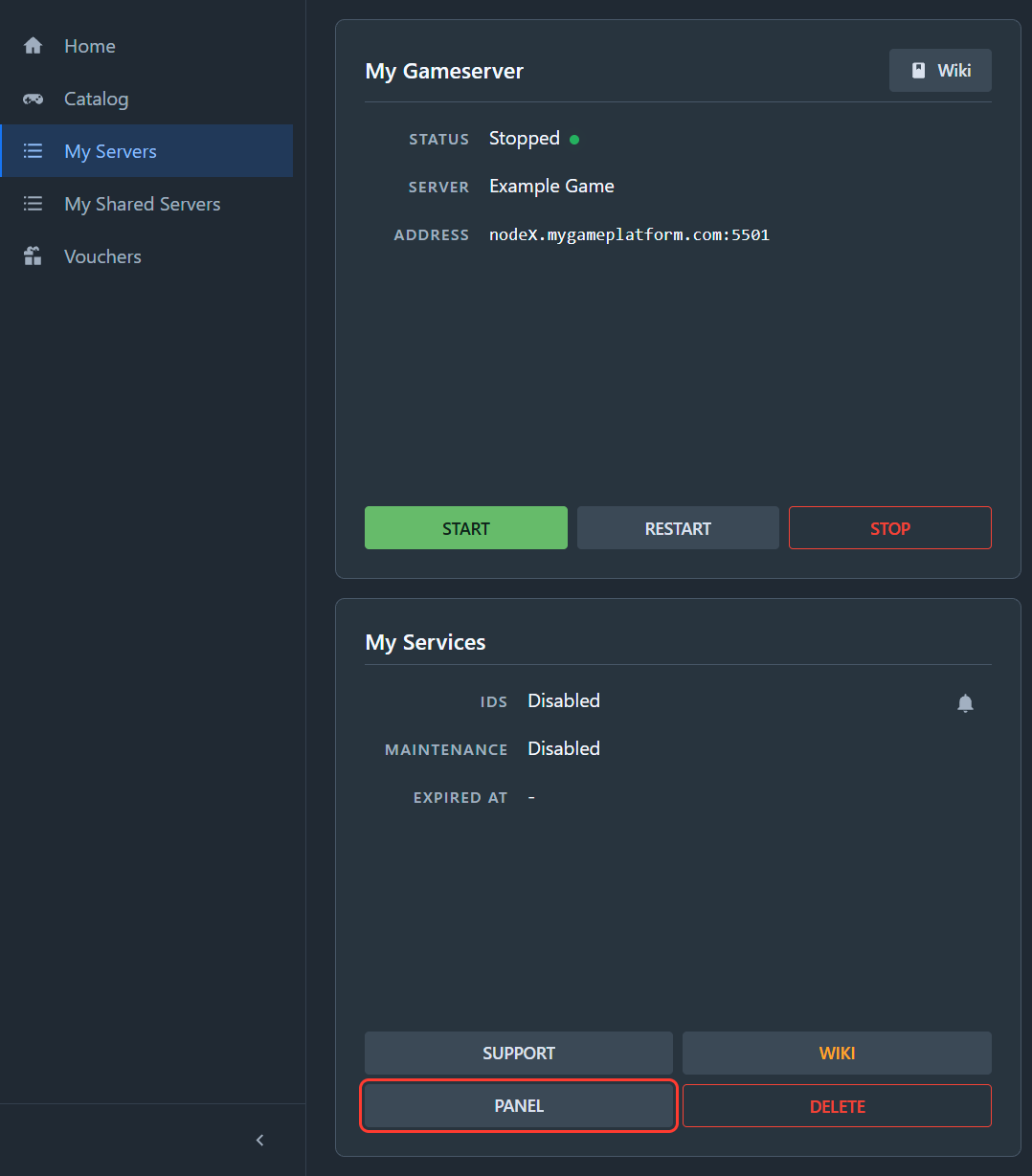
Open My Servers, click your Gameserver and then PANEL.
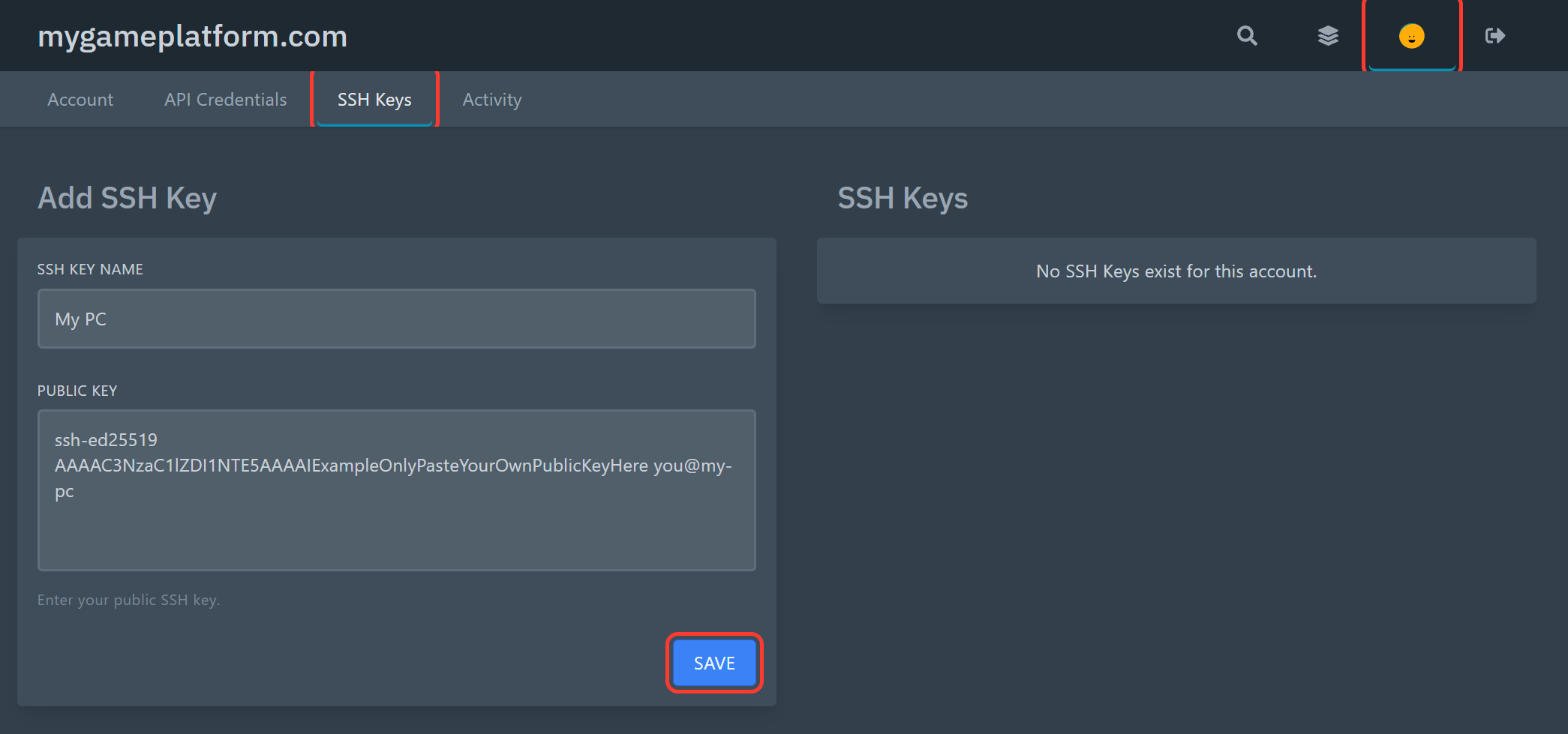
In the panel, click your account icon at the top right and then the tab SSH Keys.
Show your public key in the terminal and copy the whole line:
Enter a name for the key, paste the line into Public Key and click Save.
Step 3 — Find your SFTP details
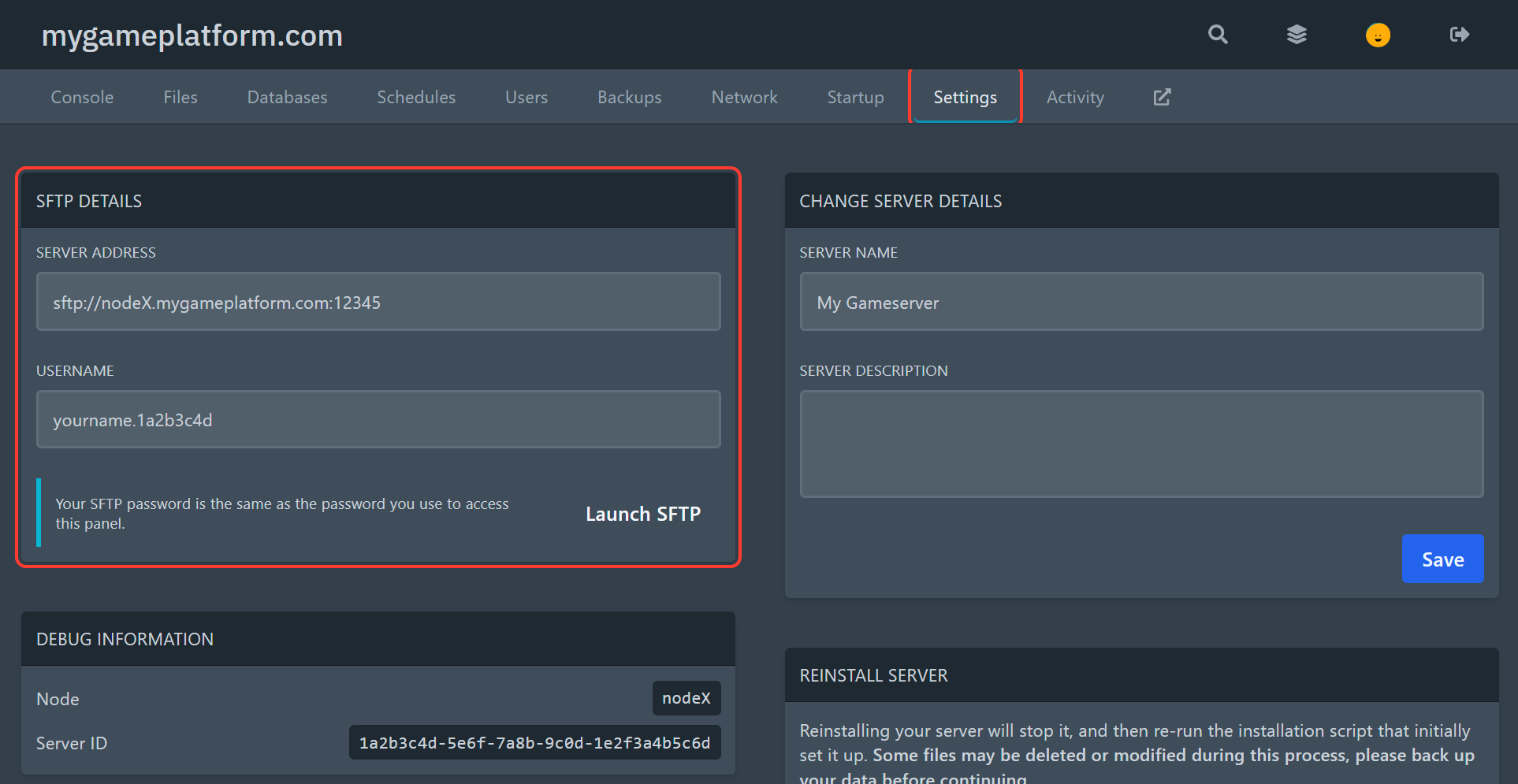
Open your Gameserver in the panel again (My Servers → your Gameserver → PANEL) and click the tab Settings. The values are in the box SFTP Details.
Field | Example | What you need it for |
|---|---|---|
Server Address |
| Host ( |
Username |
| Your SFTP username for this Gameserver |
Step 4 — Connect
Replace port, username and host with your values from Step 3:
In PowerShell on Windows, write $HOME\.ssh\id_ed25519 instead of ~/.ssh/id_ed25519.
The first time, sftp asks whether you trust the server. Type yes. You are now in the files of your Gameserver — no password needed.
Programs like WinSCP or FileZilla work too: select the private key file id_ed25519 instead of entering a password.
Example: update a mod automatically
A typical script for a new version of a mod or plugin does five things:
Step | How |
|---|---|
1. Build | Build the new files on your PC. |
2. Back up | Download the files you are about to replace ( |
3. Upload | Upload the new files ( |
4. Restart | Restart the Gameserver with the User API (scope |
5. Check | Read the console with the User API (scope |
To roll back, upload the old files again or rename them back.
Steps 2 and 3 as an SFTP batch file, for example deploy.txt:
Run it with:
Replace plugins, MyPlugin.dll, build and backup with your own folders and files. The folder backup must exist on your PC.
Logs
SFTP: many games write log files into a folder such as
logs. Download them withget.User API:
servers:consolereads the newest console lines,servers:console-streamshows the console live.
Backups in the panel
You can also let the panel create backups on a schedule — see Schedules and Backups.
Let an AI tool do it
AI coding tools such as Claude Code, Codex or Cursor can write and run such a deploy script for you. Give them:
the SFTP details (host, port, username) and the path to your private key,
an API token with the scopes
servers:read,servers:controlandservers:console(optional:servers:console-stream,servers:command).
Keep your key safe
Anyone with your private key can change the files of your Gameservers. Never share it, post it on Discord or commit it to Git.
If your key may have leaked, delete it in the panel under SSH Keys right away and create a new one.